What Is an IP Checker? How “What Is My IP” Tools Protect Your Privacy
Every time you open a website, stream a video, or connect to a game server, you leave a tiny digital business card behind: your IP address. An IP checker (or “What is my IP” tool) simply shows you that card — but once you understand what’s printed on it, you can also see how much it reveals about your privacy.
In this article we’ll look at what an IP checker does, what information it exposes, and how a VPN helps you stay in control of what the internet knows about you.
What Is an IP Address?
An IP address (Internet Protocol address) is a unique identifier assigned to your device on the network. It works a bit like a postal address for data:
- Public IP address – assigned by your internet service provider (ISP) and visible to websites, streaming platforms, and online services.
- Private IP address – used only inside your home or office network (for example,
192.168.0.5).
When people search for “what is my IP”, they’re really asking: What public IP address do websites and apps see when I connect?
What Does an IP Checker Show?
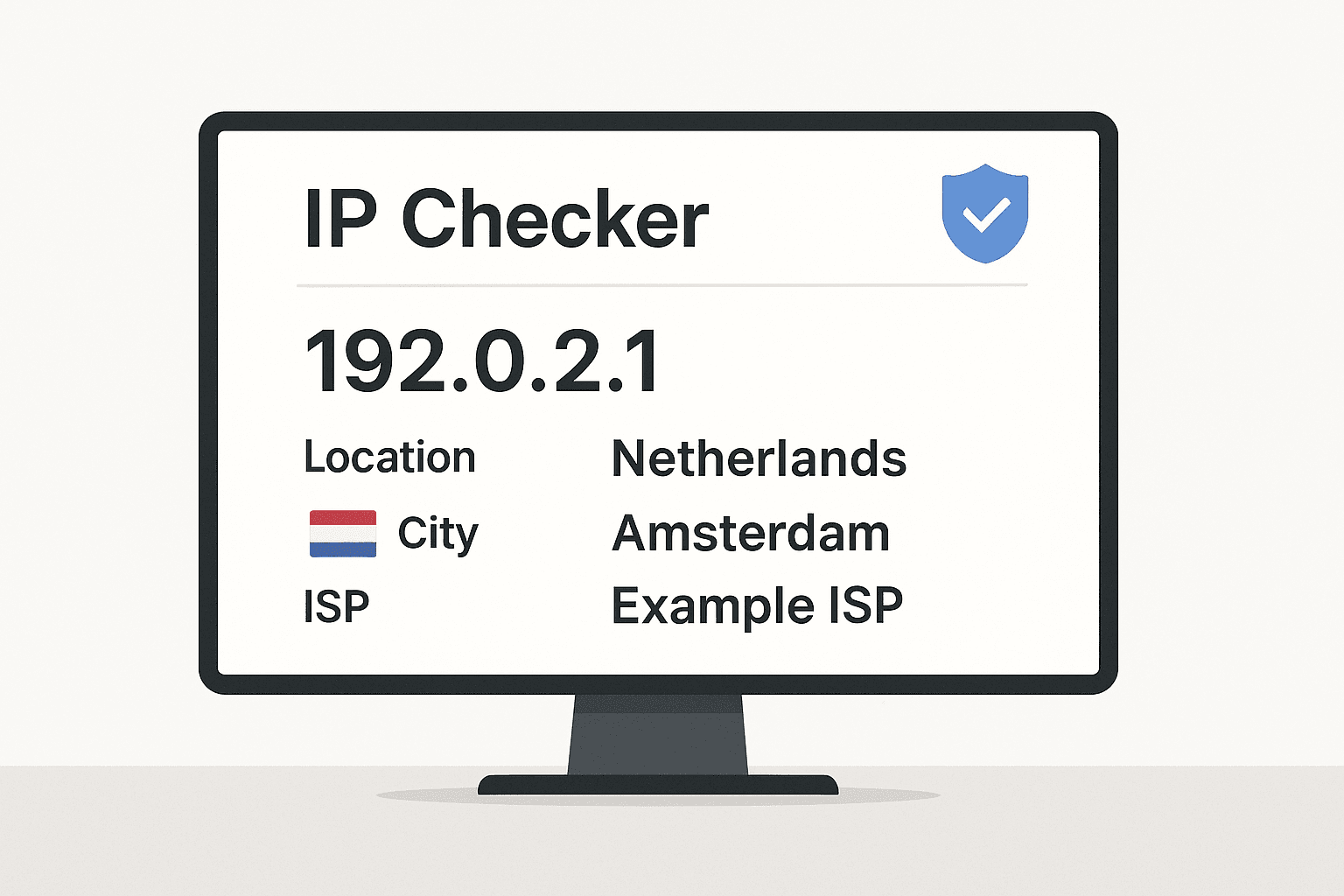
Most IP checker tools display more than just a string of numbers. A typical “What is my IP” page can reveal:
- Your public IP address (IPv4 or IPv6)
- Approximate location (country, region, city)
- Internet Service Provider (ISP)
- Connection type (mobile, broadband, corporate network)
- Sometimes, hostname or proxy / VPN detection
This data comes from public IP databases. Your IP is looked up in a large table that maps address ranges to providers and regions. The result isn’t usually accurate enough to pinpoint your exact home, but it’s more than enough to:
- Guess your country and city
- Adjust prices and content (geo-pricing, regional catalogs)
- Apply geo-blocks or censorship
- Feed tracking profiles for advertising
Why You Should Regularly Check Your IP
Using an IP checker isn’t just a geeky curiosity. It’s a quick way to verify how visible — or hidden — you are online.
1. Confirm your real location is hidden
If you’re using a VPN, you want websites to see the VPN server’s IP, not your own. Opening an IP checker lets you instantly verify:
- Is the location shown as the VPN server city?
- Has the IP address changed compared to your normal connection?
If the checker still shows your real region or ISP, your VPN may be disconnected or misconfigured.
2. Detect unwanted proxies or corporate filtering
Sometimes your connection goes through:
- A corporate proxy
- A hotel or public Wi-Fi gateway
- A school or campus network
An IP checker that shows a company name you don’t recognize can be a warning that your traffic is being logged or filtered.
3. Troubleshoot streaming and gaming issues
Streaming platforms and online games often rely on IP address information to apply regional rules. If you suddenly see a different country or ISP in an IP lookup, it may explain:
- Why your favorite show disappeared
- Why a game server thinks you’re in another region
- Why login security challenges suddenly increased
Checking your IP is often the first step in debugging those problems.
IP Checker vs. DNS Leak Test vs. WebRTC Leak
Many tools around privacy sound similar, but they test different things.
-
IP checker / What is my IP
Shows the IP address that websites see when you connect. It runs purely over HTTP(S). -
DNS leak test
Checks which DNS servers are resolving your domain lookups. Even if your IP is hidden by a VPN, DNS requests leaking to your ISP can reveal which sites you visit. -
WebRTC leak test
WebRTC (used for video calls and some real-time apps) can sometimes reveal your real IP inside the browser, even when you use a VPN — unless it’s properly blocked or routed.
For full privacy, you want all three to align with your VPN, not your real ISP.
How a VPN Changes What an IP Checker Sees
A VPN (Virtual Private Network) sits between you and the internet. When you’re connected:
- Your device creates an encrypted tunnel to the VPN server.
- From the outside, all your traffic appears to come from that server, not from you.
- Websites and IP checkers will show:
- The VPN server’s IP address
- The VPN provider’s ISP name
- The location of the server you chose
Practically, this means:
- You can change your apparent country with a single tap.
- You avoid websites linking your activity to your real home or mobile IP.
- Public Wi-Fi admins see only encrypted traffic, not your browsing.
Whenever you switch VPN locations, it’s good practice to open an IP checker and confirm that:
- The country and city match the server you selected
- There is no sign of your original ISP in the results
If you see your home country instead of the VPN one, disconnect and reconnect — or choose another server.
When “What Is My IP” Results Look Suspicious
Sometimes the IP checker output doesn’t match your expectations. Here are a few common edge cases.
1. Location is far away inside the same country
Geo-IP databases are not perfect. Your ISP might register a whole region under one city, so your IP checker shows a nearby metropolis instead of your town. That’s normal and not a leak.
2. The IP is in another country, but you’re not using a VPN
This can happen if:
- Your mobile carrier routes traffic through another region
- A corporate proxy or CDN (content delivery network) is in use
- You’re behind a hotel or airplane Wi-Fi system
If you didn’t expect that, treat it as a signal to be cautious. Someone else might be logging or controlling your traffic.
3. The IP checker shows your VPN provider AND your real ISP
That can point to:
- A split-tunneling configuration where some apps bypass the VPN
- A DNS leak where lookups still go to your ISP
- A WebRTC leak inside the browser
Running a DNS leak test and disabling WebRTC in your browser (or letting your VPN handle it) usually fixes this.
Best Practices When Using IP Checkers
To get the most out of IP and privacy tools:
-
Test before and after connecting to your VPN.
Confirm that your public IP, location, and ISP name really change. -
Combine IP checkers with DNS and WebRTC leak tests.
They cover different parts of your connection and complement each other. -
Reconnect if something looks off.
If the IP location doesn’t match your chosen VPN server, just disconnect and reconnect or choose another region. -
Avoid entering personal data on suspicious networks.
If an IP lookup shows a strange corporate or hotel network, assume your traffic might be inspected.
Final Thoughts
An IP checker is a simple tool, but it reveals a lot about how the internet sees you. It answers the question “What is my IP?”, but it also hints at your country, ISP, and sometimes even the type of network you’re on.
Used together with a reliable VPN, IP, DNS, and WebRTC tests give you a clear picture of your online exposure. Instead of leaving your digital business card everywhere, you can choose what information you share — and what stays private.