Your Bank App Blocks You When the VPN Is On? Why It Happens and How to Fix It
You switch the VPN on, open your banking app, and get "Access restricted. Turn off your VPN and try again." Or worse: the payment goes through the first time, and the second time the bank freezes the card and asks you to come to a branch.
This is not a bug in your phone. It is how banks protect themselves, and in 2025–2026 more of them started doing it. In Kazakhstan, for example, the local press has reported clients of large banks being blocked after logging in through a VPN or from an unusual country. The good news: you do not have to choose between your bank and your VPN.
Why banks react to a VPN at all
A bank's anti-fraud system scores every login and every payment. A VPN changes several of the signals it looks at:
- The IP address belongs to a data centre, not to a home or mobile provider. Data-centre ranges are publicly known, and fraud systems treat them as higher risk.
- The country does not match. Your card is from one country, your phone says another, and the login comes from a third. To the bank, that is what account takeover looks like.
- The location jumps. Yesterday you logged in from Almaty, today from Frankfurt, an hour later from Almaty again.
- Many customers share one IP. A VPN server carries thousands of users; if one of them commits fraud, the address gets flagged for everyone.
None of this means a VPN is illegal or that the bank thinks you are a criminal. It means the bank cannot tell you apart from someone using your stolen password, so it blocks to be safe.
The usual "fix" and why it is a bad one
Most people just turn the VPN off every time they open the bank, and back on afterwards. In practice that means:
- forgetting to turn it back on, so the rest of your traffic is exposed on café or hotel Wi-Fi;
- the bank still sees a foreign IP from the few seconds before you remembered to switch off;
- doing this five times a day.
The proper fix: keep your own country's traffic outside the VPN
The idea is simple: send traffic to sites and services in the country you are in directly, and everything else through the VPN. Your bank, government services, delivery and taxi apps see your normal local IP and work as usual. Everything else, including foreign sites and anything on public Wi-Fi, stays protected.
This is different from classic split tunneling by app, where you choose which apps bypass the VPN. App-based exclusion works too, but it has gaps: a bank's website opened in the browser, a payment page inside another app, or a bank's SDK inside a marketplace app will all still go through the VPN. Routing by country covers all of them at once, because the decision is made by where the server is, not by which app is asking.
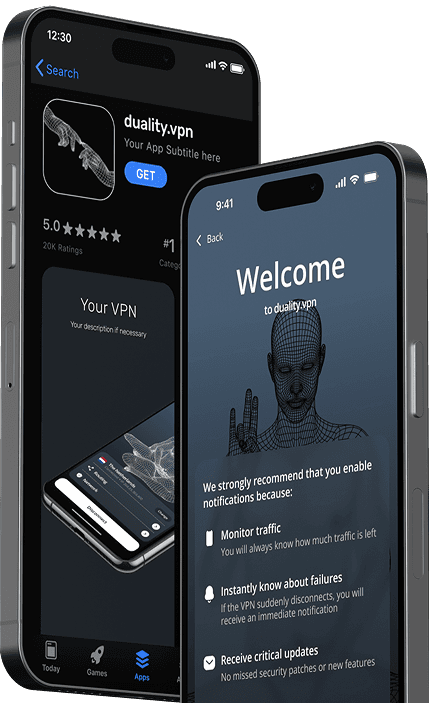
How to set it up in Duality VPN
In Duality VPN this is a single switch:
- Open the app and go to Routing.
- Turn on "Exclude VPN traffic routing within my current country."
- Connect as usual.
From then on, sites and services in the country you are physically in go directly, and the rest goes through the server you picked (Germany, France, Lithuania, the Netherlands, Poland, Singapore or the US). Country routing is part of the Premium plan.
If your bank is in a different country from the one you are in (for example, you moved to Georgia but still bank in Kazakhstan), use Custom routing → Bypass and add that country. Its traffic will then skip the VPN and go out through your local connection. Keep in mind that the bank will see the IP of the country you are actually in. That is your real location, so it is usually fine, but some banks still ask for extra confirmation on the first login from a new country.
When the app checks the phone, not the IP
Some banking apps do not look at the IP address at all. They ask the phone whether a VPN is active. In Kazakhstan, for example, banks started rejecting operations when a VPN is on in April 2025, following National Bank requirements. For an app like this, country routing does not help: the phone still reports an active VPN, even though the bank's traffic goes directly.
What works then:
- On Android, exclude that app from the VPN completely (per-app exclusion, if your VPN has it). An excluded app does not see the VPN at all.
- On iPhone, apps cannot be excluded individually, so pause the VPN for the payment and turn it back on right after.
Country routing still covers everything else: the bank's website, payment pages in other apps and the rest of your local services.
What this does not do
To be clear about the limits:
- It does not make a foreign login look domestic. If the bank requires you to be physically in the country, routing cannot change that, and you should not try to fool it.
- It does not hide your banking from your bank. Your bank always sees your account activity; that is the point of banking.
- It does not replace the bank's own security. Keep two-factor authentication on.
Quick checklist
- Getting "turn off your VPN" in your bank app? Turn on country routing instead of turning the VPN off.
- Bank in another country? Add that country under Bypass.
- First login after setting this up: if the bank asks for SMS or an in-app confirmation, that is normal.
- Still blocked? Contact the bank and say you use a VPN with local routing; many banks will whitelist your device.
Other ways to get the same effect
Country-based routing is not unique to us. Some other VPNs offer similar options under different names, such as "smart mode" or "geo exclusion," and some routers can do it with GeoIP rules. What matters is the principle: local traffic goes direct, everything else is protected. If your current VPN has a setting like this, turn it on. If it does not, that is the feature to look for.